






















How to check spelling in a multi-language Word document
 Updated September 21, 20262 min read
Summary
Learn efficient multi-language spell-checking in Word docs. Explore tools & settings for accurate proofreading across diverse languages effortlessly.
Hello and welcome to this week’s tip-of-the-week! If you’ve missed our previous tips-of-the-week, feel free to check them out here.
This week, we’re going to talk about spell checking your multi-language document in Microsoft Word. It’s always a good idea to use spell check, but what about if your document contains more than one language? I know I find myself writing both Spanish and English in the same document, and I want to make sure I put the correct accents on the Spanish words and that I don’t accidentally type “importante” instead of “important” in the English section of the document, or have the English spell check automatically correct “restaurante” to restaurant.”.
I’m using Microsoft Word 2010, but the options should be similar for previous versions, as well.
There are several ways to go to the grammar and spelling check option. Once you open your multi-language document, click on the “Review” tab and then click on “Spelling & Grammar.”
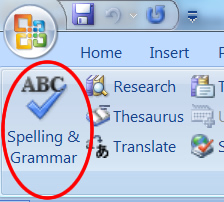
You can also activate the “Spelling and Grammar” option by pressing the shortcut key F-7.
Unless you have selected text, your document will be checked from beginning to end using the default language as chosen in the “Set Proofing Language” menu.
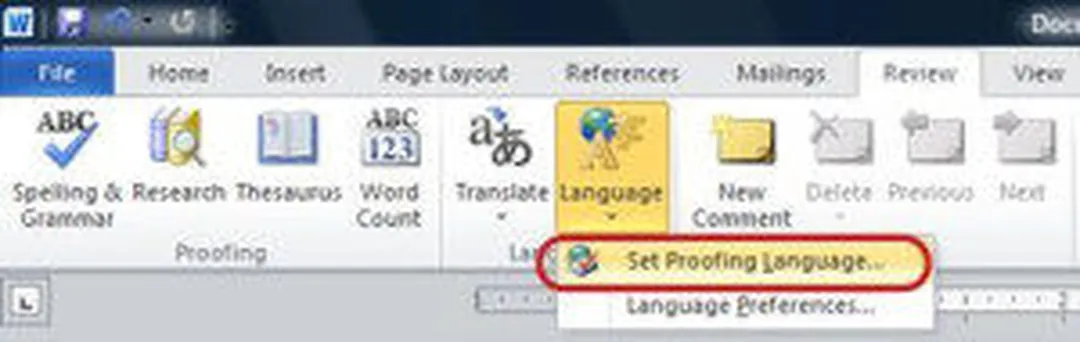
To see your current default language or to change the default language used for proofing your documents, click on “Review” tab and select “Set Proofing Language.”
In the Language dialog box, verify that the correct language is associated with the text. If it is not, select the language that you want to use for the dictionary and other proofing tools.
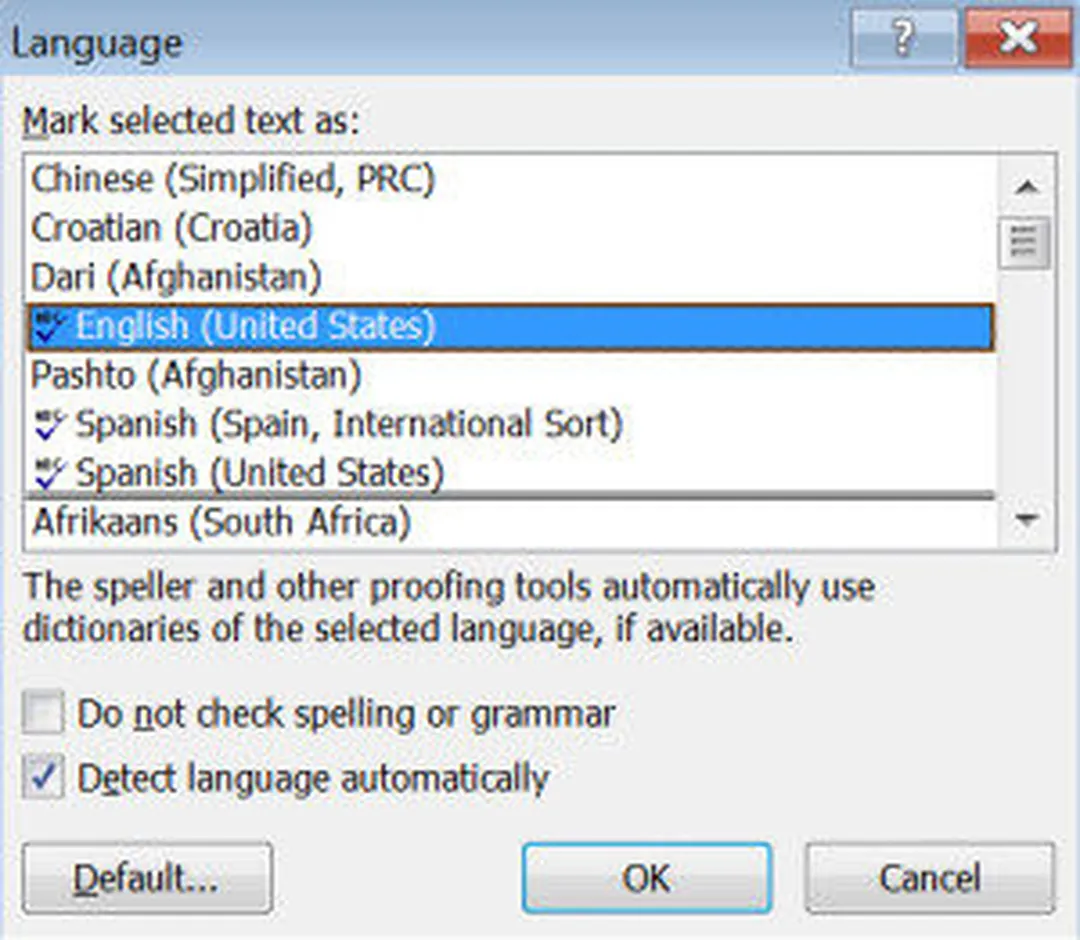
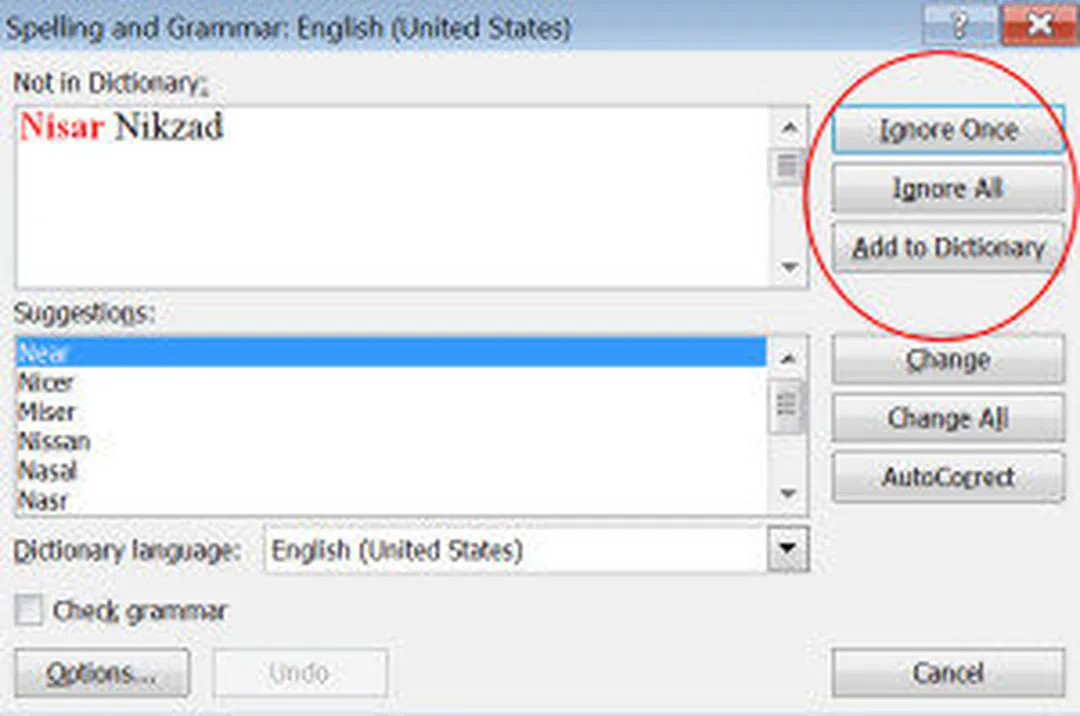
If the “Spelling and Grammar” tool detects a misspelled word, it will prompt you to correct the mistake, but it will also give you the option to change the language used for proofing directly from within the “Spelling and Grammar” tool. In this way, you can select specific text, activate the “Spelling and Grammar” tool, and choose the language for proofing that section of your document.
For small amounts of text, such as the name of a book, author, or city written in a foreign language, it is often just as easy to click the “Ignore Once” or “Ignore All” options, as shown here:
Repeat these steps to check spelling and grammar in another language.
Bonus tip! If you click on the “Review” tab, the “Language” submenu, and the “Language” dropdown, you will find an option called “Language Preferences.” This option will allow you to set your default editing, display, help, and screen tip languages, as well as allowing you to view additional available languages.
That’s it for this week’s tip-of-the-week, but check back next week when I’ll show you how to change your keyboard’s language on the fly.
Do you have suggestions for a tip-of-the-week not covered here? Let us know what you’d like to see in the comments below!