






















Summary
Master time management. Get the scoop on Google Calendar—tips, features, and tricks to organize your schedule efficiently and boost productivity.

Introduction
Hello and welcome to this week’s tip of the week!
This week, we’re looking at Google Calendar, a free scheduling tool that helps you organize events, manage appointments, set reminders, and share your schedule with others. In this guide, you’ll learn how Google Calendar works and how to set it up for everyday use.
What Is Google Calendar?
Google Calendar is an online calendar application that helps users schedule events, organize appointments, and manage their time. You can access it through a web browser or the Google Calendar mobile app. It is useful for individuals, students, freelancers, and businesses that need to organize their schedules and track deadlines.
The tool is useful for individuals, students, freelancers, and businesses that need to coordinate activities and keep track of deadlines.
Some of its main features include:
- Creating and editing calendar events
- Setting event notifications and reminders
- Scheduling recurring meetings
- Inviting guests to events
- Sharing calendars with other people
- Managing tasks and deadlines
- Viewing events in different time zones
You can access it through the official Google Calendar website.
How Does Google Calendar Work?
Google Calendar organizes your schedule into calendar views, allowing you to see your upcoming activities by day, week, month, or other available views. You can add events, assign dates and times, and receive notifications before scheduled activities.
For example, a project manager can schedule a team meeting, invite participants, attach relevant documents, and set a reminder. A freelance translator can use the same tool to track assignment deadlines, client calls, and project review sessions.
Google Calendar can also display shared calendars, helping teams coordinate their schedules without relying on lengthy email exchanges.
How to Set Up Google Calendar
First things first, you need to open Google Calendar. There are a couple of ways you can do this. Note that you need a Google Account to use Google Calendar, but you do not necessarily need a Gmail address.
- Go to: https://www.google.com/calendar/
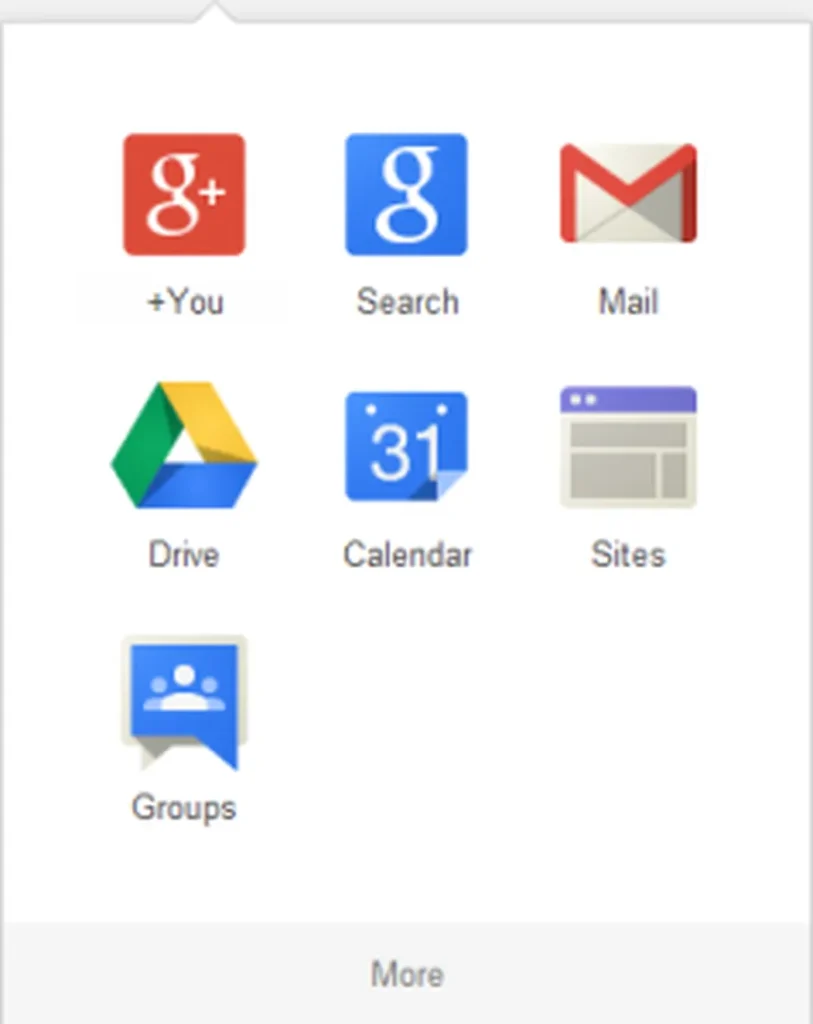
- Click on the Google Apps icon in the upper right corner of your Gmail account (if you use the Chrome web browser, this icon is also in the upper right corner of the default Chrome homepage). It looks like this:
From there, click on Google Calendar from the dropdown to open it.
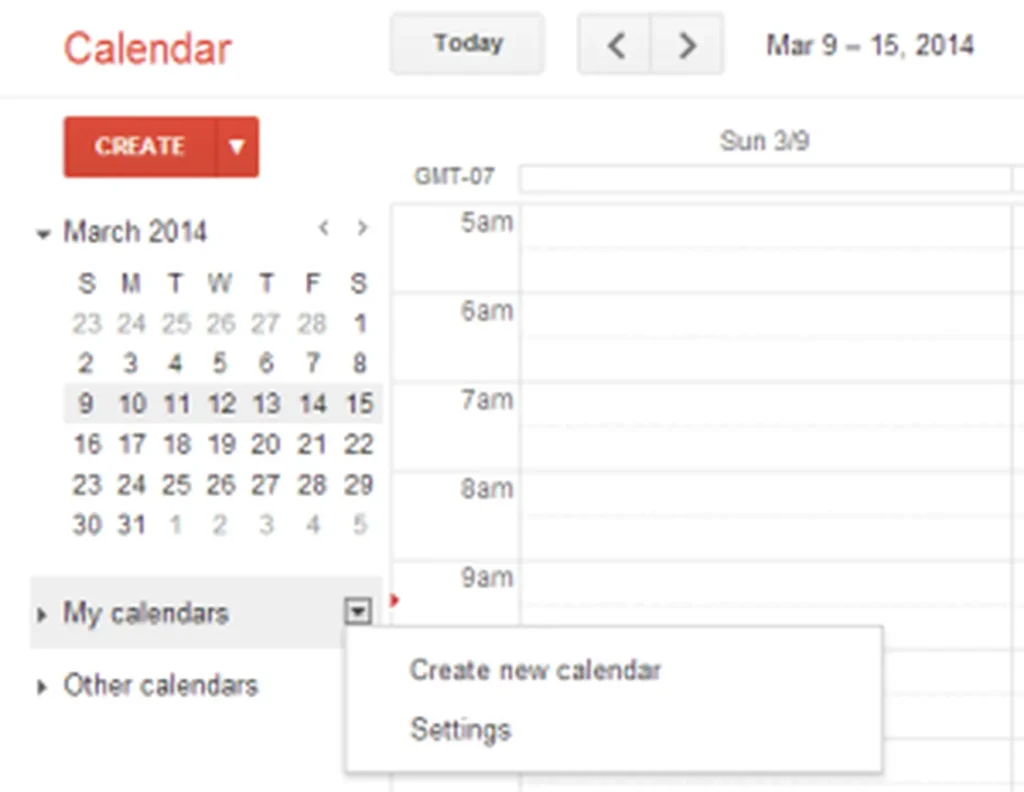
You’ll first need to create your calendar. When you create a Gmail account, a calendar will be automatically created for you. However, if you would like to create a new one, you can do so by clicking on the little arrow next to “My Calendars” and then selecting “Create new calendar.”
Doing so will bring you to a page where you can enter details such as the calendar name, description, location, and time zone. You can also choose to share your calendar with others or adjust its access settings.
If you would like to edit these settings for an existing calendar, simply click on the “Settings” for that calendar.
How to Create an Event in Google Calendar
Now that your calendar is set up, the real fun begins. Let’s create our first event. To create an event we have three different options; here are my unofficial names for them:
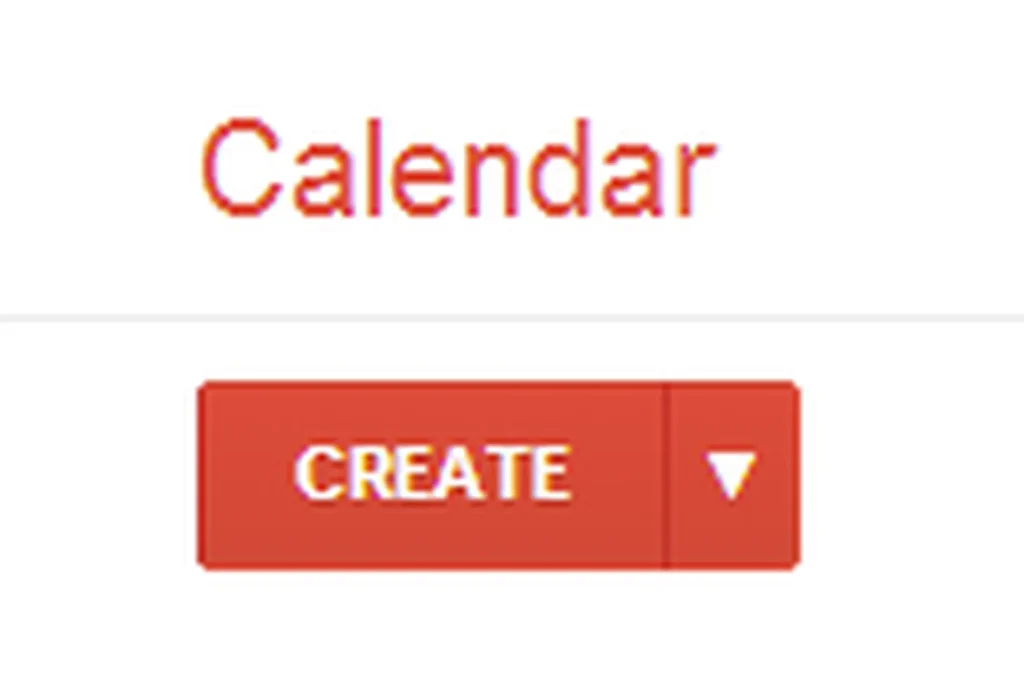
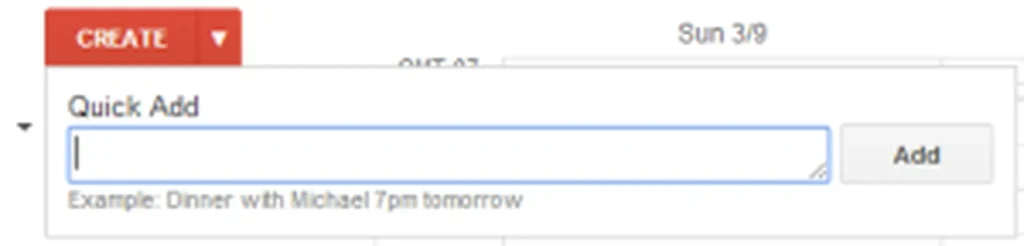
1. Quick Add: This one actually is the official name. To access it, simply click on the little arrow next to “Create”. From there, type in the event along with the time and date. The below example would create an event at 7 p.m. tomorrow that was titled “Dinner with Michael.” The event would default to a length of one hour.2. Click Add: This one is the one I use most because I think it’s the quickest. Click on the starting hour for your event and drag your mouse to the ending time. Again, the default is one hour so if you just click on 2:00 p.m. (what I did below), it will create an event from 2:00 p.m. – 3:00 p.m. You can then add a title to the event and if you’d like to add more information, you can click on “Edit event” (more on this below).
3. Standard Create: Finally we have the standard way to create an event, for this, simply click on “Create.” Doing so will bring up a window which I will break down below. If you chose option two and then clicked “Edit event,” this is the same window that would pop up.
How to Add Details to a Google Calendar Event
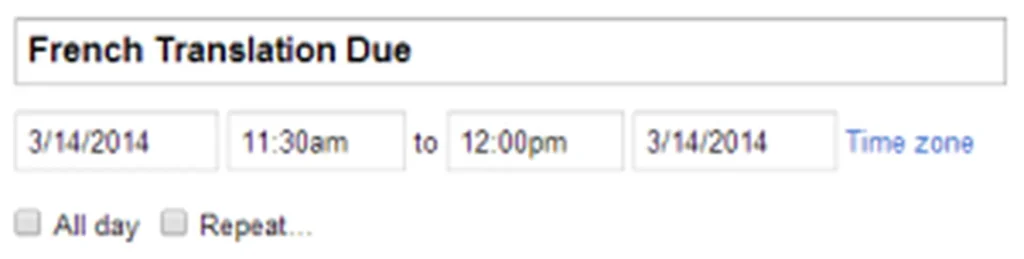
First we have the title and time. Here you can title your event, choose the date, the time range, and even the time zone. We’ve found the time zone feature to be extremely handy for things such as interpretation assignments taking place in other states.
You’ll also notice the checkboxes “All day” and “Repeat…” These will allow you to either create an event that lasts all day, or repeat an event for any number of days, weeks, months, or years. The “Repeat…” checkbox can be a great reminder for long-term assignments, weekly meetings, or weekly administrative tasks.
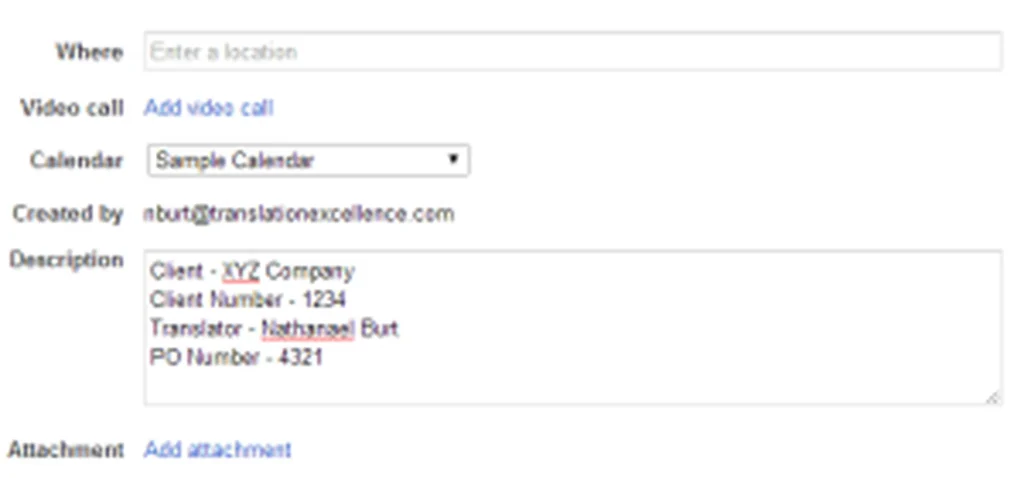
Next, we’ll add more details. Since the event I’m creating is for a translation, I haven’t entered a location however that field is great for interpretation assignments and meetings. You can also choose which calendar to add the event to, add a description, and attach documents. The video call option is for Google + Premium users so I won’t go into it for this post. If you would like to learn more about this service, click here.
Invite Guests and Set Event Reminders
One of the best parts is being able to easily add guests. Just type in an email address and you’ll send them an invitation! Below I’ve shared the event with my personal calendar (“Nathanael Burt”).
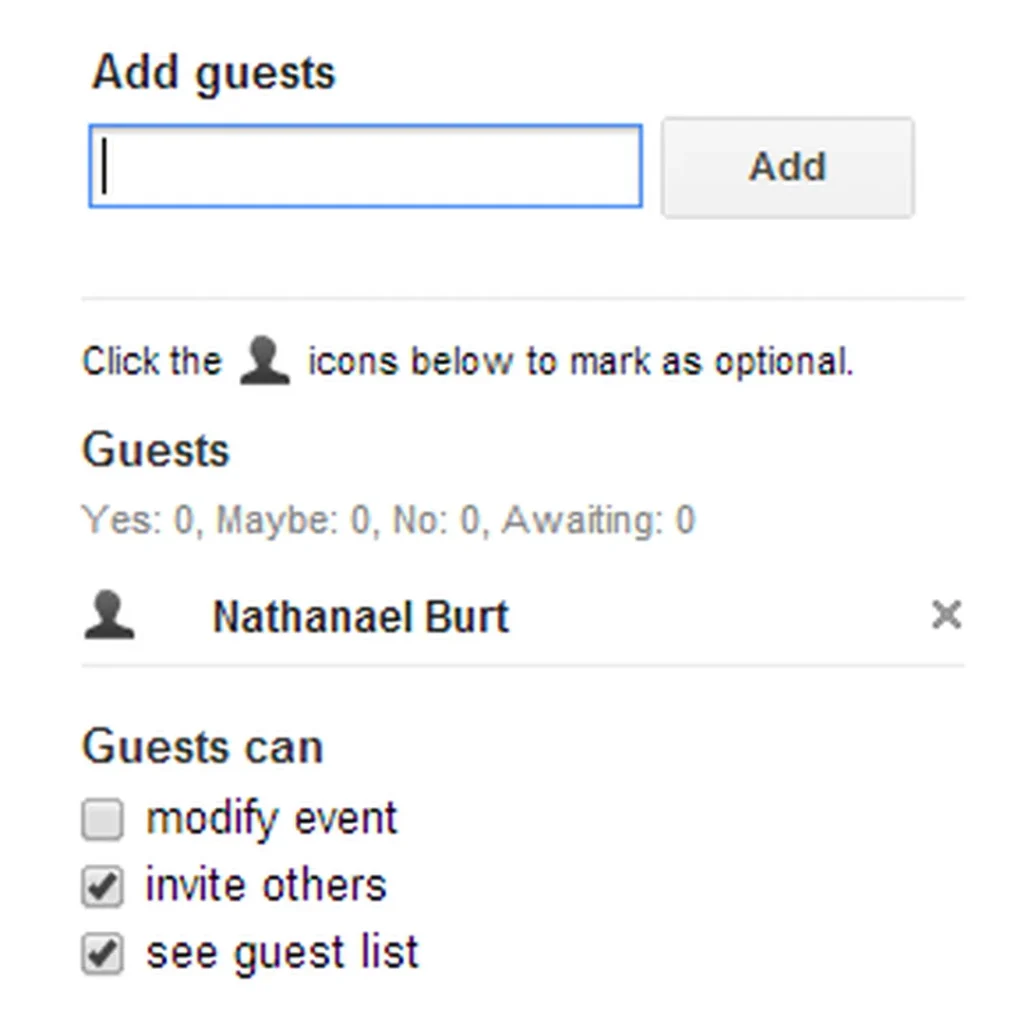
At the bottom of the “Edit event” menu you can do a couple of other things.
- Choose a color for the event on your calendar
- Set reminders for the event
- Choose whether you want others to see you as “Available” or “Busy”
- Change the privacy settings of the event (learn more here)
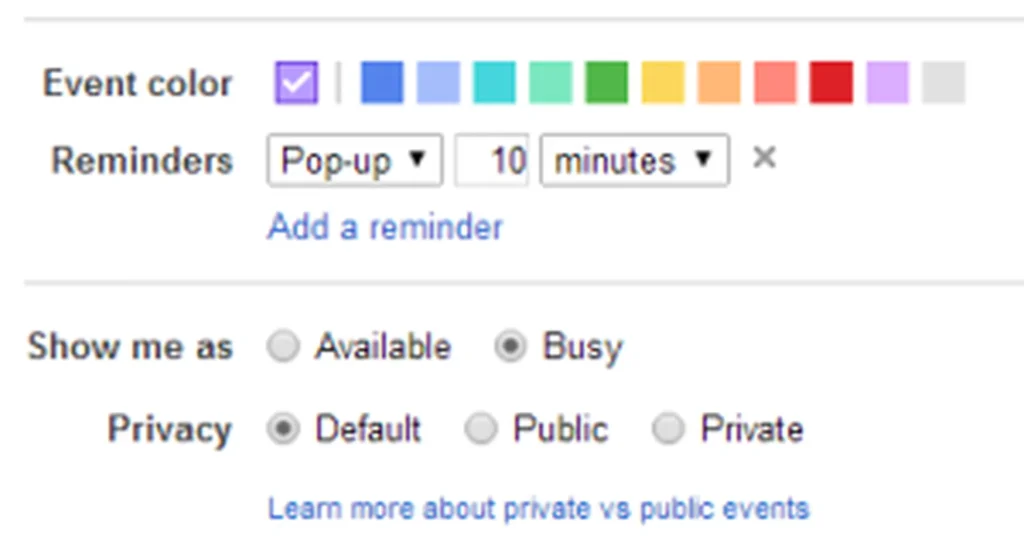
Then hit “Save” up top and pat yourself on the back since you’ve just created your first event!
Here it is:
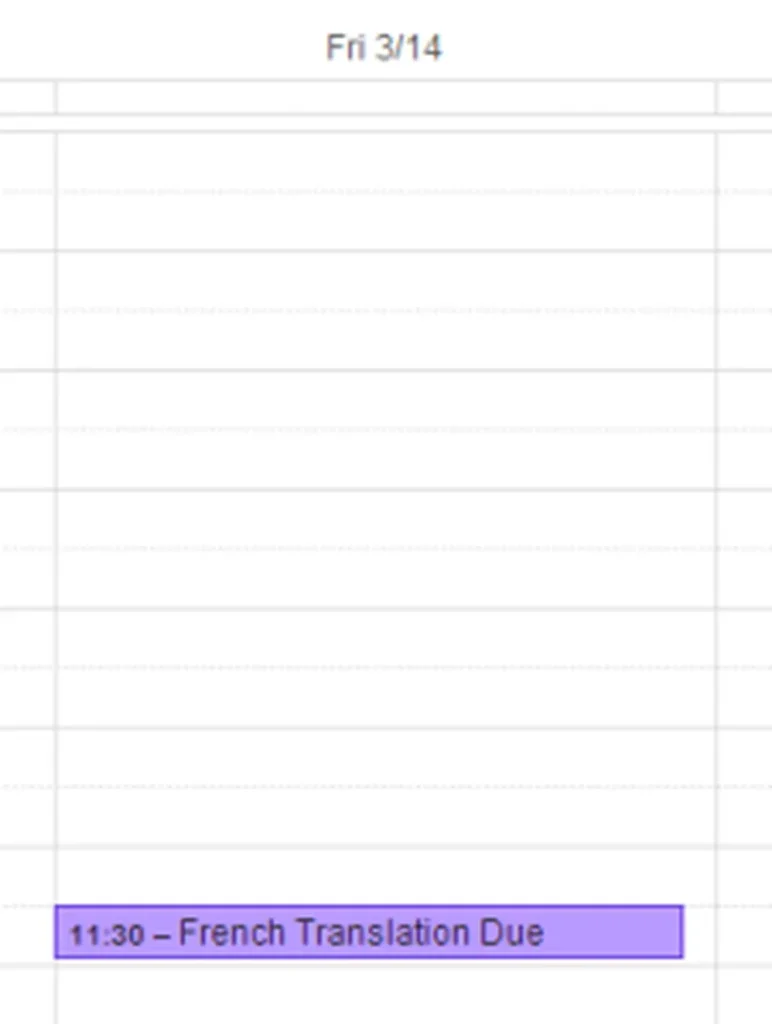
You can now move the event to another time slot by dragging it, and if you click on it once a menu will pop up allowing you to either delete the event or edit it some more.
How to Use Google Calendar Tasks
Another way to stay organized with Google Calendar is to use “Tasks,” which you will find under “My Calendars” as a default calendar.
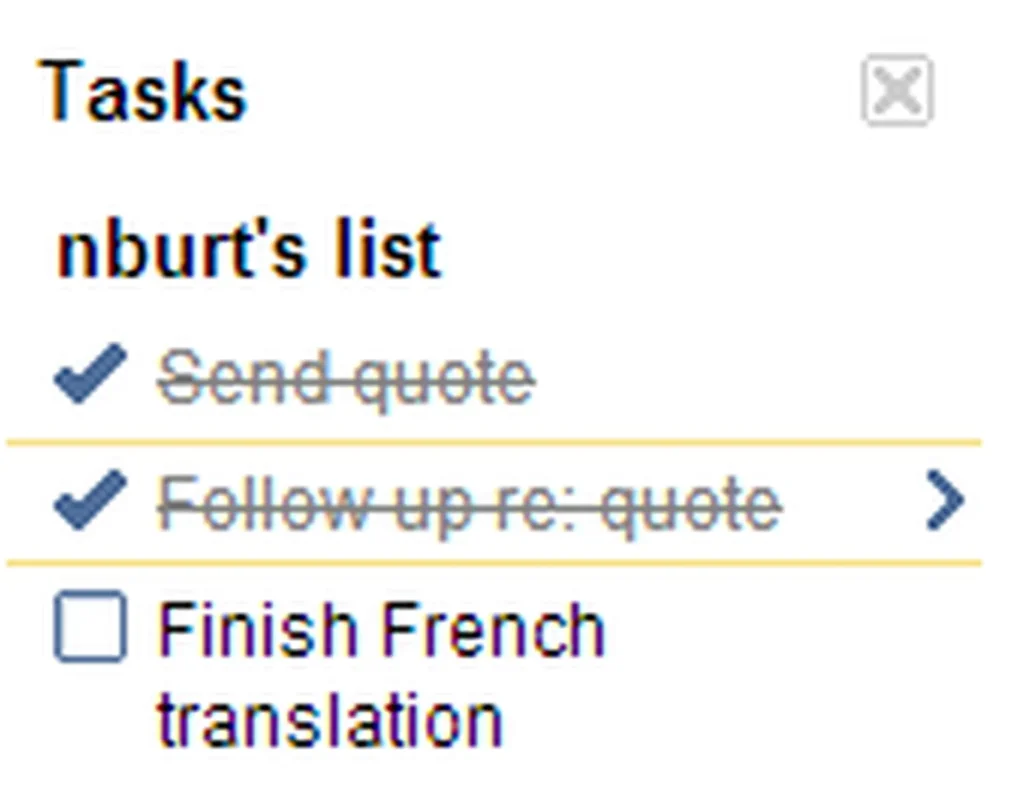
When you click on it, it will bring up a side bar on the right. To add tasks, simply type in the space next to the little check box. You can add more tasks by hitting “Enter.” You can also add tasks by hitting the “+” button at the bottom of the page but I think this first option is the easiest.
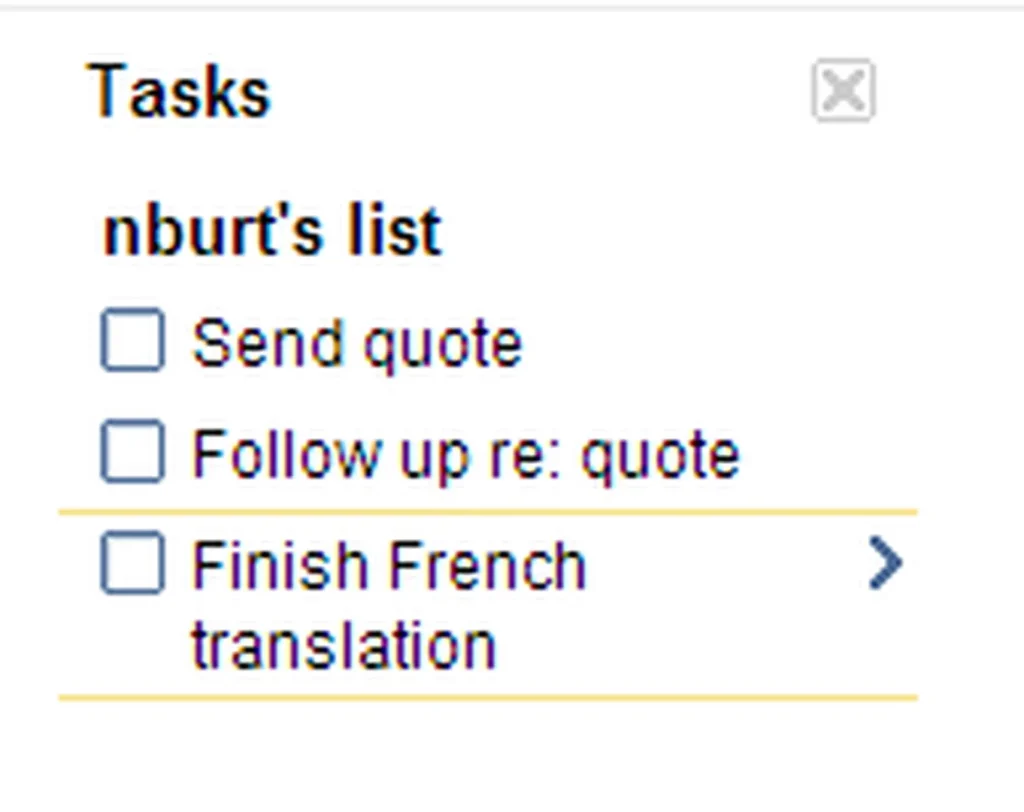
You can also create new lists by clicking on the image of bulleted lines at the bottom. This could be great for different sets of tasks. For example, you could separate your daily work tasks, long-term tasks, and grocery list.
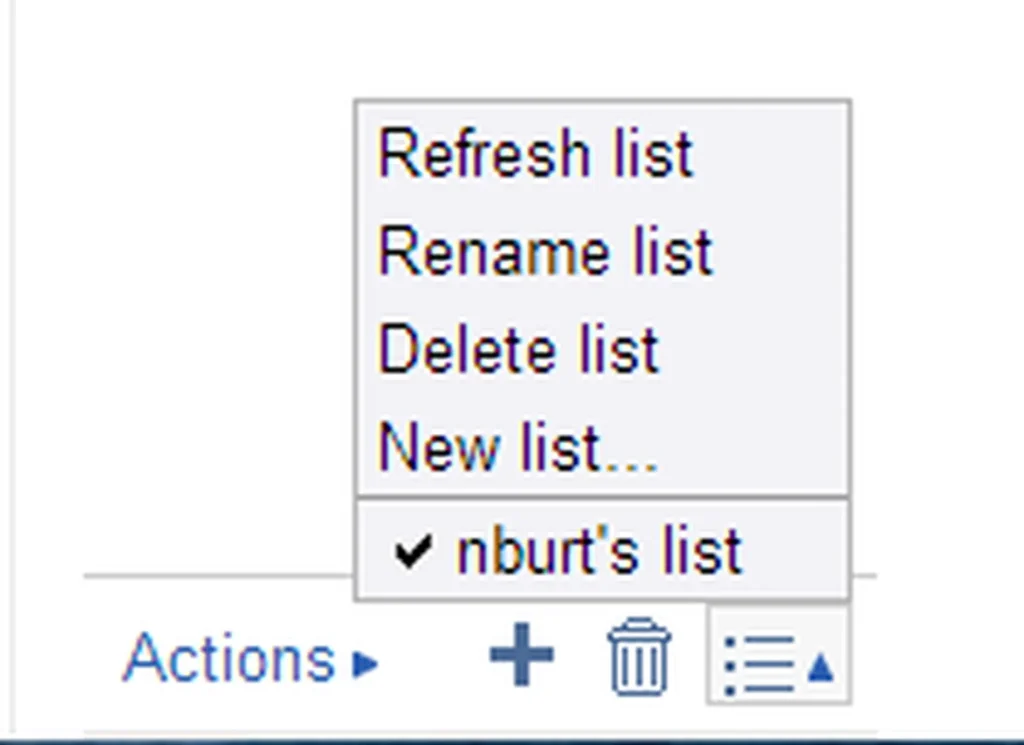
Now, all that’s left is to check off the tasks you have completed and then happily delete them by hitting the trashcan icon at the bottom.
How to Share Google Calendar With Colleagues
One of the last things I want to talk about is the sharing feature of Google Calendars. This feature is so awesome because it enables you to see when you’re colleagues are available or busy without having to email them and also allows colleagues to see your schedule. Gone are the days of long email threads to schedule a meeting; just find a time where you’re colleagues are free!
You’ll be able to see all your calendars and the calendars people have shared with you (under “Other Calendars”) on the left side of the calendar app. The ones that have a colored box are currently being shown on your calendar, the ones without it are toggled off.
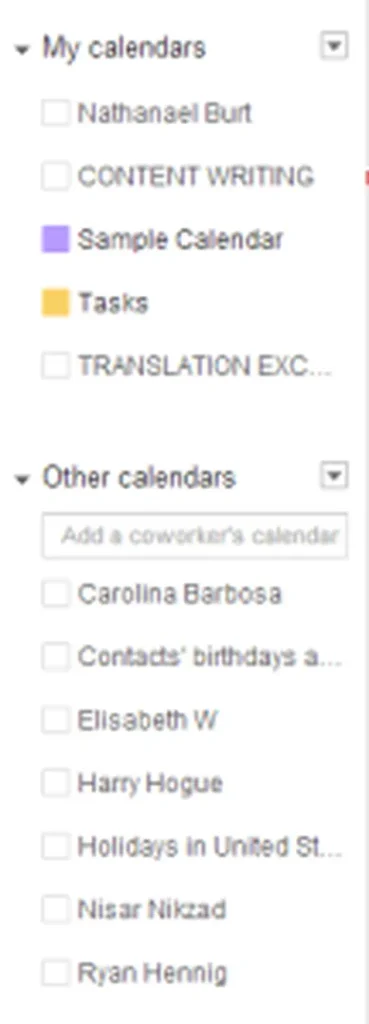
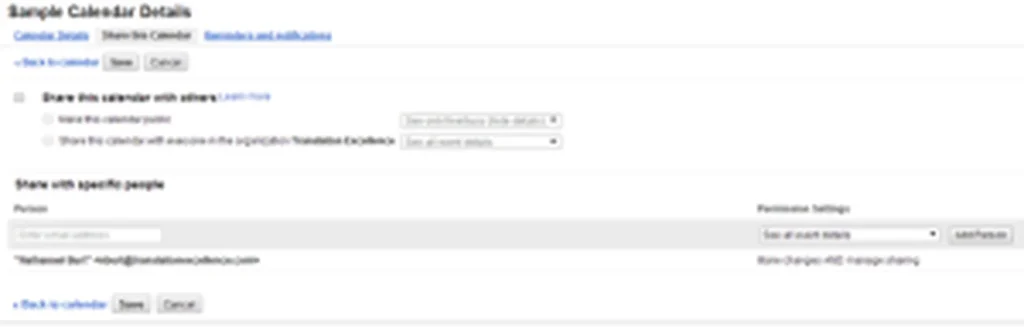
To share a calendar, simply hover over it with your mouse and then click on the little triangle that appears to the right.
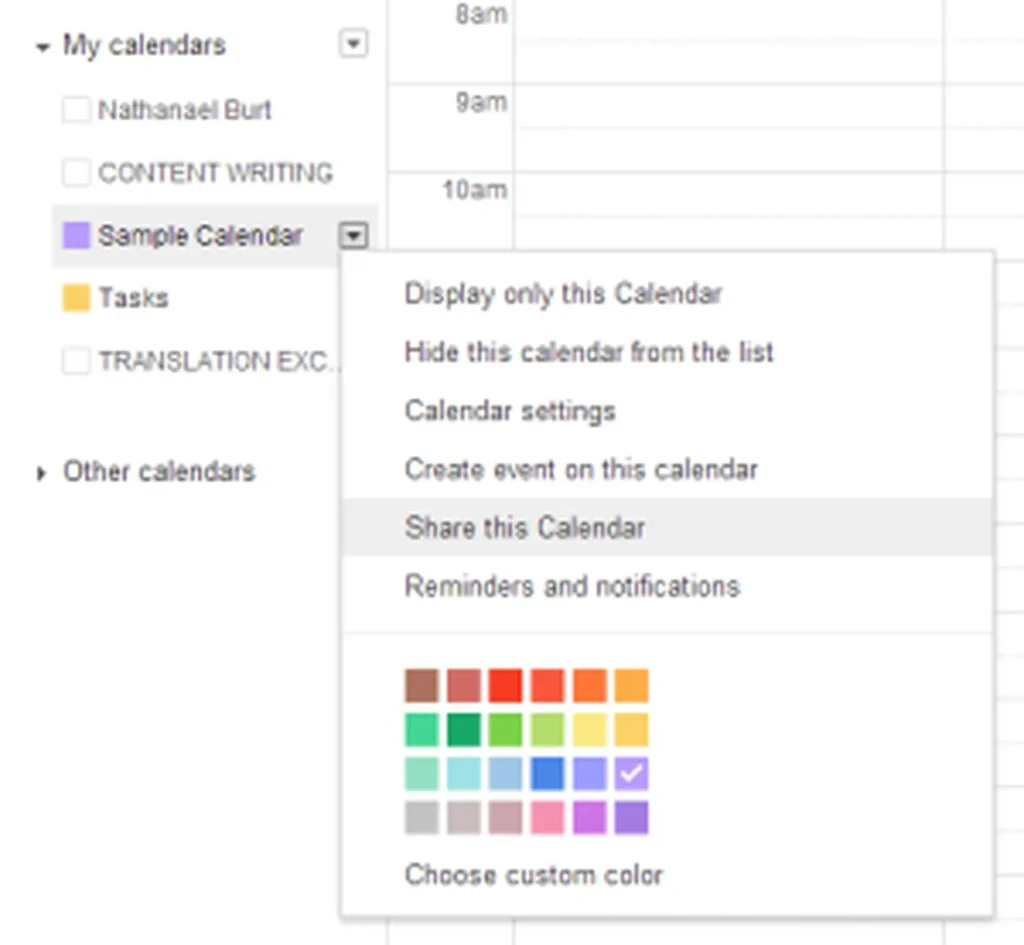
Then, just enter in the email addresses of the people you would like to share it with. You can see I have shared my “Sample Calendar” with myself.
How to Manage Google Calendar Notifications
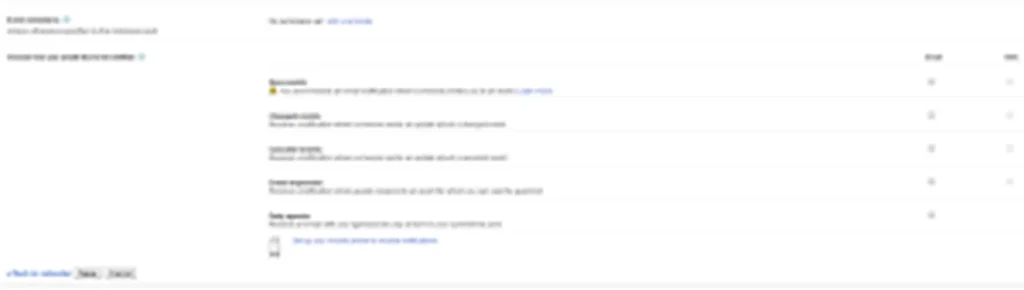
Finally, we have event reminders. You can edit these settings in your calendar preferences. This is located next to “Share this Calendar” on the Calendar Details and is called “Reminders and notifications” (see above screenshot).
You can create reminders for yourself so if a colleague creates, changes, cancels, or responds to an event, you’ll receive an email notification. There is also an option to receive a daily schedule update with all your events for that day.
There we have it — Google Calendar.
Now, I’d love to hear from you. Do you use Google Calendar for work or your personal life? Is there another calendar program that you like better? Let me know in the comments below!
FAQs:
What are the main features of Google Calendar?
Google Calendar allows you to create events, schedule meetings, set reminders, manage recurring appointments, share calendars, invite guests, and organize tasks. It also supports time zone settings and integration with other Google services.
What are some tips and tricks for using Google Calendar?
Use color coding to organize different activities, set reminders for important deadlines, create recurring events for regular meetings, and share calendars with colleagues. You can also use Google Tasks to manage your to-do lists.
What is Google Calendar and what are its uses?
Google Calendar is an online scheduling application used to organize meetings, appointments, deadlines, and personal activities. It helps individuals and teams manage their schedules and coordinate events more efficiently.
Which is better, a calendar or a Google Calendar?
A traditional paper calendar is useful for handwritten notes and simple planning. Google Calendar is more suitable for digital reminders, recurring events, shared schedules, and coordinating meetings across devices. The best option depends on your preferences and needs.
What are some cool things I can do with Google Calendar?
You can create separate calendars for work and personal activities, schedule recurring events, share your availability, set reminders, organize tasks, and invite people to meetings. These features help you keep your schedule organized.
Improve Your Workflow With Better Scheduling
Staying organized helps you manage deadlines, coordinate meetings, and keep projects on track. Whether you’re scheduling translation assignments or coordinating interpretation services, tools like Google Calendar can make everyday tasks easier to manage.
At Translation Excellence, we understand the importance of effective communication and reliable project coordination. Visit our website to learn more about our professional translation and interpretation services.