






















Key points
- Understanding what are headers and footers in Word documents
- How to insert headers and footers in Word step by step
- How to insert headers/footers with numbering correctly
- Methods to remove header and footer in Word for cover pages
- Microsoft Word formatting tips for professional documents
Welcome to this week’s Tip of the Week! If you’ve missed our previous Tips of the Week, be sure to check them out here.
Today we’re going to tackle the basics of headers and footers in Word. We’ll be going over how to insert headers, how to insert footers, how to remove headers and footers from the first page of a document (the cover page), and how to have alternating headers and footers for odd and even numbered pages.
To learn a little about headers, footers, and how to use them I’m going to walk you through how to create a simple company letterhead, using Translation Excellence as the company.
How to Insert Header and Footer in Word
To insert a header in Word click “Insert” and then “Header.” As you can see from the below screenshot, there are many header templates to choose from. Choose whatever suits your document style and it will insert the header for you.
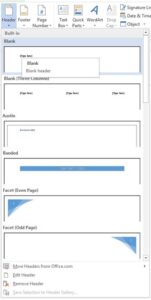
Adding Content to Header in Word
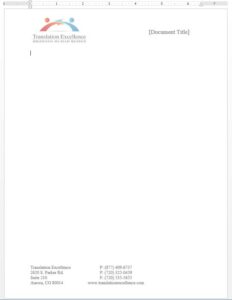
Next, add anything! Here I have added the text “[Document Title]” to show where I would add the document’s title when using the letterhead, and I have added our company logo.
You can do this by:
- Clicking “Insert” → “Pictures”
- Selecting the file from your computer
Extra Tip: When inserting pictures into the header or footer, select “Behind Text” as the layout option. This allows flexible positioning.

How to Insert Footer in Word with Example
Inserting a footer involves the same process as inserting a header except we select “Footer” instead of “Header.”
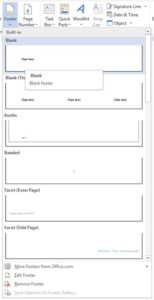
Now, I’m going to add some company information to the footer.
Footer in Word Example with Alignment
To structure your footer properly:
- Use the Tab button to create multiple columns
- Align text left, center, or right as needed
This is a simple but effective footer in Word example for professional documents.
How to Insert Headers and Footers with Numbering
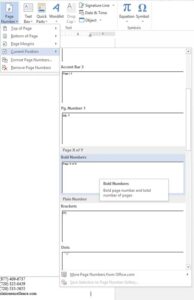
It’s time to add a page number.
To do this:
- Click “Insert” → “Page Number”
- Place the cursor where you want the number
- Select “Current Position”
This method ensures your footer content is not replaced.
Remove Header and Footer in Word First Page
Headers and footers repeat by default. But what if you need a clean cover page?
Follow these steps:
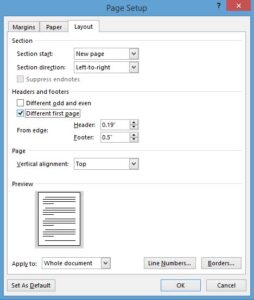
- Go to “Page Setup”
- Click the small arrow
- Open the “Layout” tab
- Check “Different first page”
Now your first page will not display headers or footers.
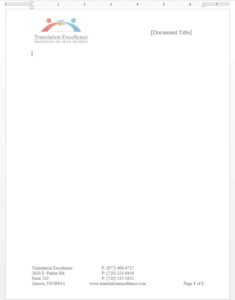
I selected “Bold Numbers,” here are the results:
Different Headers and Footers for Odd and Even Pages
To create alternating layouts:
- Open “Page Setup”
- Go to “Layout” tab
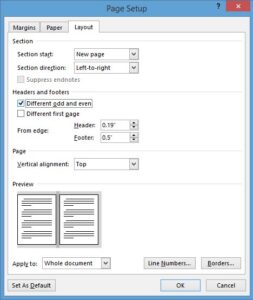
- Select “Different odd and even”
This is useful for books, reports, and professional formatting.
Voila! Now we have a blank first page that we can use to create a beautiful cover page.
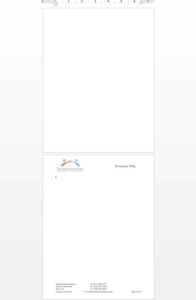
To create a document with different headers and footers on odd and even pages, follow the same steps as above. When you get to the Layout tab in the “Page Setup” dialog box, select “Different odd and even.”
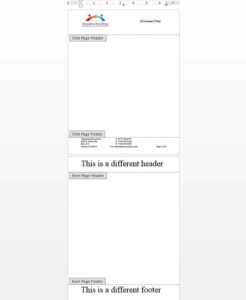
There you go; now we have two pages with two distinct headers and footers.
I’m going to wrap this post up with that, but stay tuned for next week’s article if you want to learn more about advanced formatting like section breaks and page breaks.
Call to Action
Looking to create professionally formatted documents with ease? Explore our Document Translation Services to ensure your files are polished, consistent, and client-ready.
Visit our website to learn more about:
- Professional document formatting
- Multilingual document support
- Business-ready templates and layouts
Contact us today to improve your document quality and workflow efficiency.
Related: Exploring Word Count Tools
FAQs:
What is header and footer in Word?
Headers and footers are sections at the top and bottom of a document used to display information like titles, page numbers, or logos.
What is special about headers and footers?
They automatically repeat on every page, ensuring consistency in document formatting.
What is the key difference between a header and a footer?
A header appears at the top of the page, while a footer appears at the bottom.
What is the main purpose of adding headers and footers to a document?
They help organize content, improve readability, and add professional elements like page numbers and branding.
What are common elements in a footer?
Common elements include:
Copyright details
Page numbers
Company information
Realed: Breaking it Down in Word